EraseAI · 19 November 2026
Suno Fade Out: Fix the End of Your Song in 2026
Key takeaways
- Choose the musical endpoint before drawing a fade, especially when the last lyric or chord is still resolving.
- Suno documents fade controls in its Song Editor; an exported file can also be finished in an audio editor.
- Compare the transition into silence at a comfortable level and in the context where the track will be used.
- Preserve the source and review a reopened export after any finishing or cleanup process.
In this article
- Identify what is wrong with the ending
- Set a musical region for the fade
- Try Suno's documented editing controls
- Fade an exported track in an audio editor
- Shape the curve around the last phrase
- Compare endings with a repeatable check
- Finish a WaveQuake recording in the same way
- Archive the ending you approved
- Frequently asked questions
A Suno fade out should make the ending feel intentional. Pulling the volume down is easy; deciding where the listener should stop following the performance takes more care. Start too early and the final line disappears. Start too late and the song seems to finish twice.
This guide shows how to choose a useful fade region, use the documented Suno editing route and finish an export with a conventional envelope. It applies to Suno V6 recordings and to other generated songs, including a WaveQuake track that needs a more deliberate ending before release or video use.
Identify what is wrong with the ending
Listen from the final chorus rather than repeatedly playing only the last second. Mark the final meaningful lyric, the last important musical event and the point where the remaining sound becomes decay. Those three moments help distinguish an abrupt cut from an arrangement that simply runs too long.
If the song stops in the middle of a word, a fade may make the defect quieter without completing the phrase. If the arrangement repeats after an otherwise satisfying finish, a shorter edit may be more appropriate. If the last chord is complete but its tail ends suddenly, preserve more of that decay.
Our Suno V6 guide covers the generation context, while long-track degradation deals with a different problem: declining quality throughout a later section. Do not use a fade to conceal a passage the listener still needs to hear.
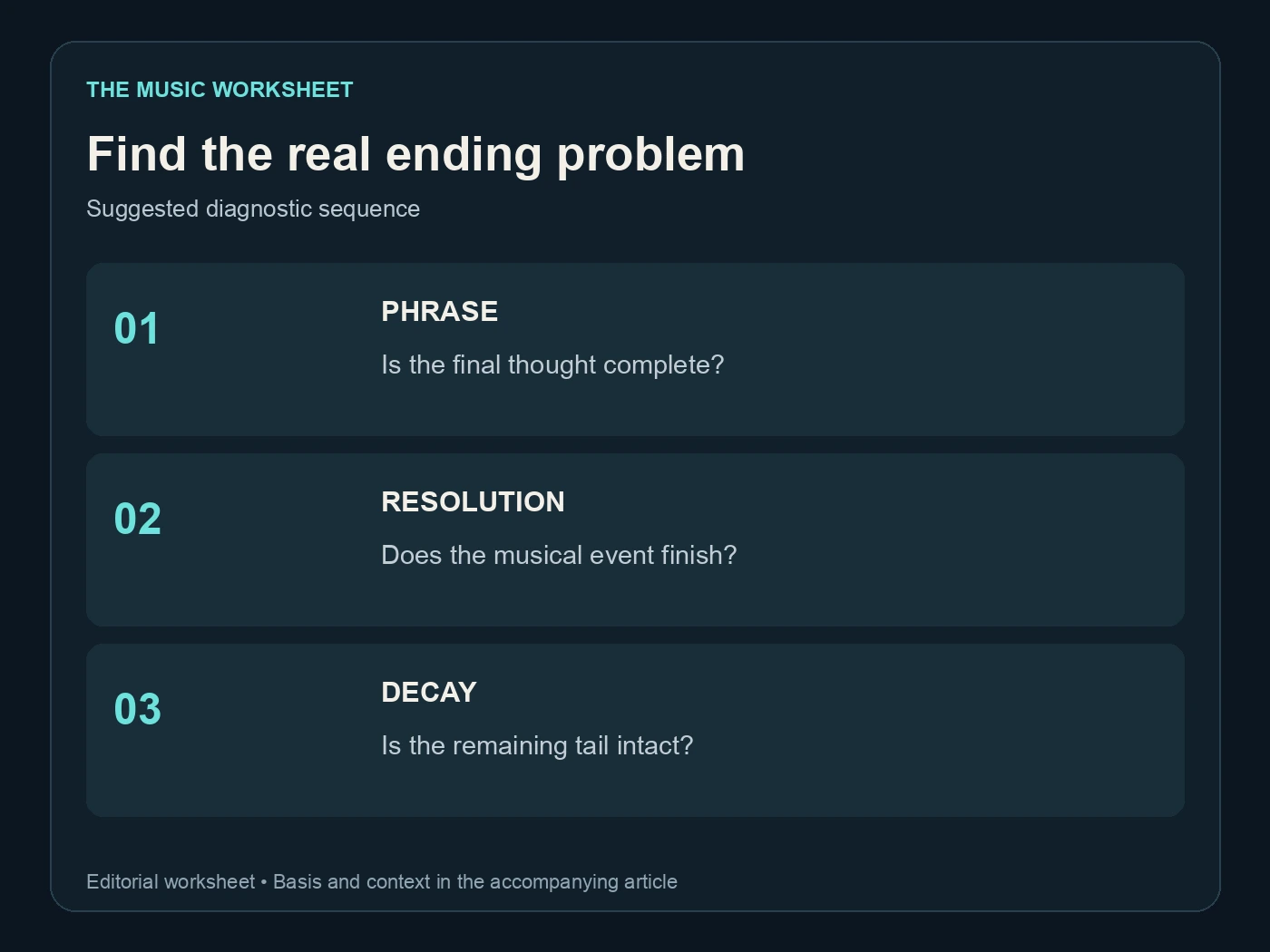
The suggested diagnostic sequence is phrase, resolution, decay. Write down which part is actually missing before choosing a tool. That small decision often saves more time than adjusting the same unsuitable fade repeatedly.
Set a musical region for the fade
Use bars or phrases when they are clear, then measure the corresponding time. For steady music in 4/4, the duration of one bar in seconds is 240 divided by BPM. A two-bar fade at 120 BPM therefore lasts four seconds.
| Calculated example in steady 4/4 | 1 bar | 2 bars |
|---|---|---|
| 80 BPM | 3 seconds | 6 seconds |
| 100 BPM | 2.4 seconds | 4.8 seconds |
| 120 BPM | 2 seconds | 4 seconds |
| 160 BPM | 1.5 seconds | 3 seconds |
These are timing calculations, not recommended fade lengths for every song. A sustained ballad ending may need room beyond a neat bar boundary. A short video sting may need a faster finish that still leaves the final attack intact.
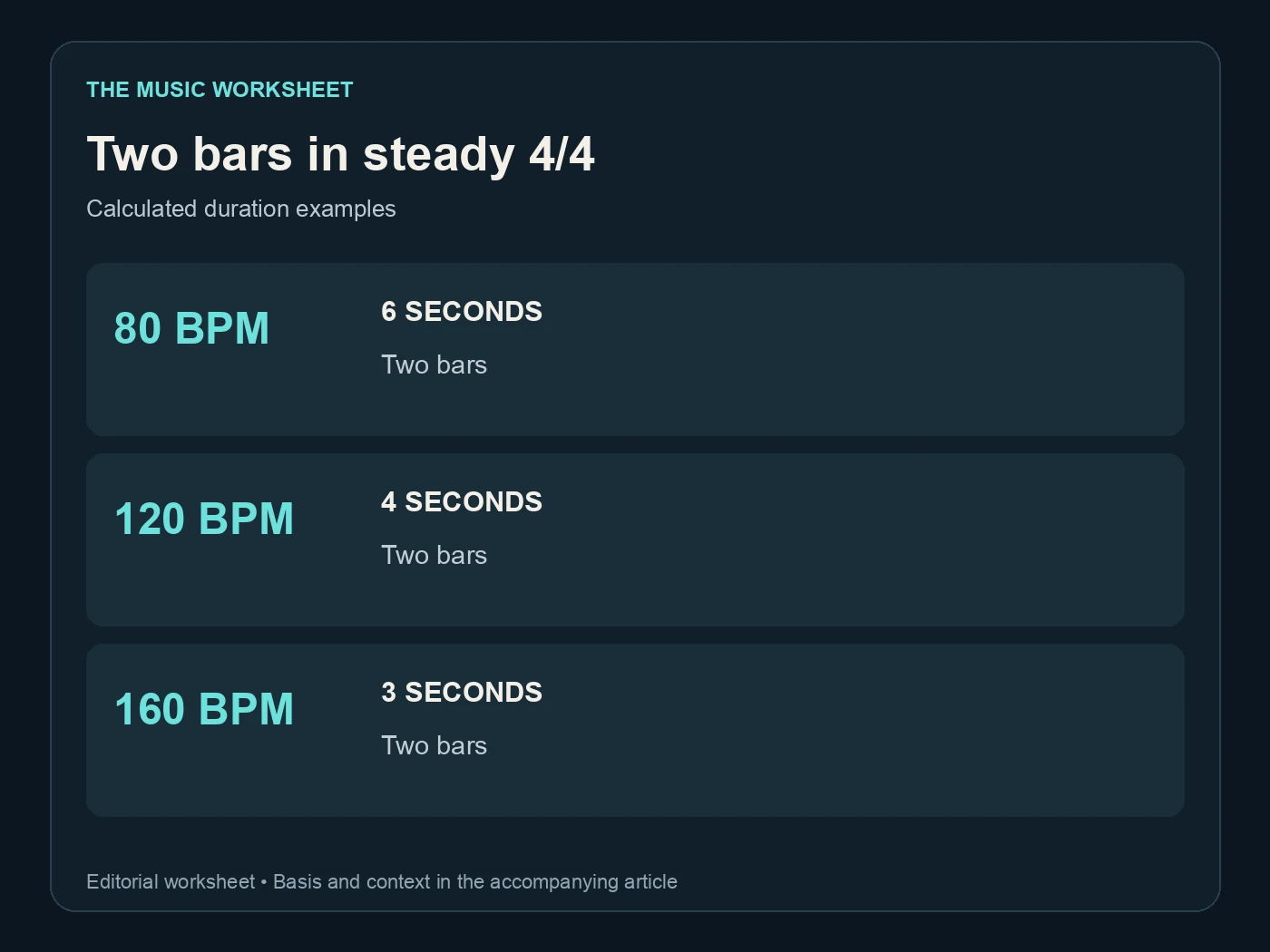
If the generated performance drifts, measure the actual region instead of trusting the tempo requested in the prompt. Keep the first comparison simple: one short fade and one longer fade ending at the same point. Hearing both in context reveals whether the music needs more breathing room or a firmer stop.
Try Suno's documented editing controls
The Suno Song Editor guide documents fade controls around the beginning and end of a clip. Use the available handle to define the end fade, preview it and check the result against the last phrase. Interface details can change, so follow the controls shown in your current account.

Save a version before making the adjustment. When the editor offers alternate sections or other arrangement changes, keep the fade decision separate from a replacement decision. Otherwise you may prefer a candidate because its performance changed, not because the fade improved.
Suno's Studio 2.0 documentation describes a broader multitrack editing environment. That can be useful if individual parts need different endings, but you do not need to rebuild an entire arrangement merely to fade a finished stereo mix.
A stereo fade lowers everything together. If you want the drums to stop while a vocal or reverb continues, that is an arrangement or multitrack edit. Our Suno stems guide explains why isolating parts changes the range of available decisions.
Fade an exported track in an audio editor
Open a copy of the recording and select the region you want to fade. In Audacity, a basic fade effect changes the amplitude across the selection, while the envelope tool lets you shape level over time. The official fade and crossfade guide explains the available approaches.
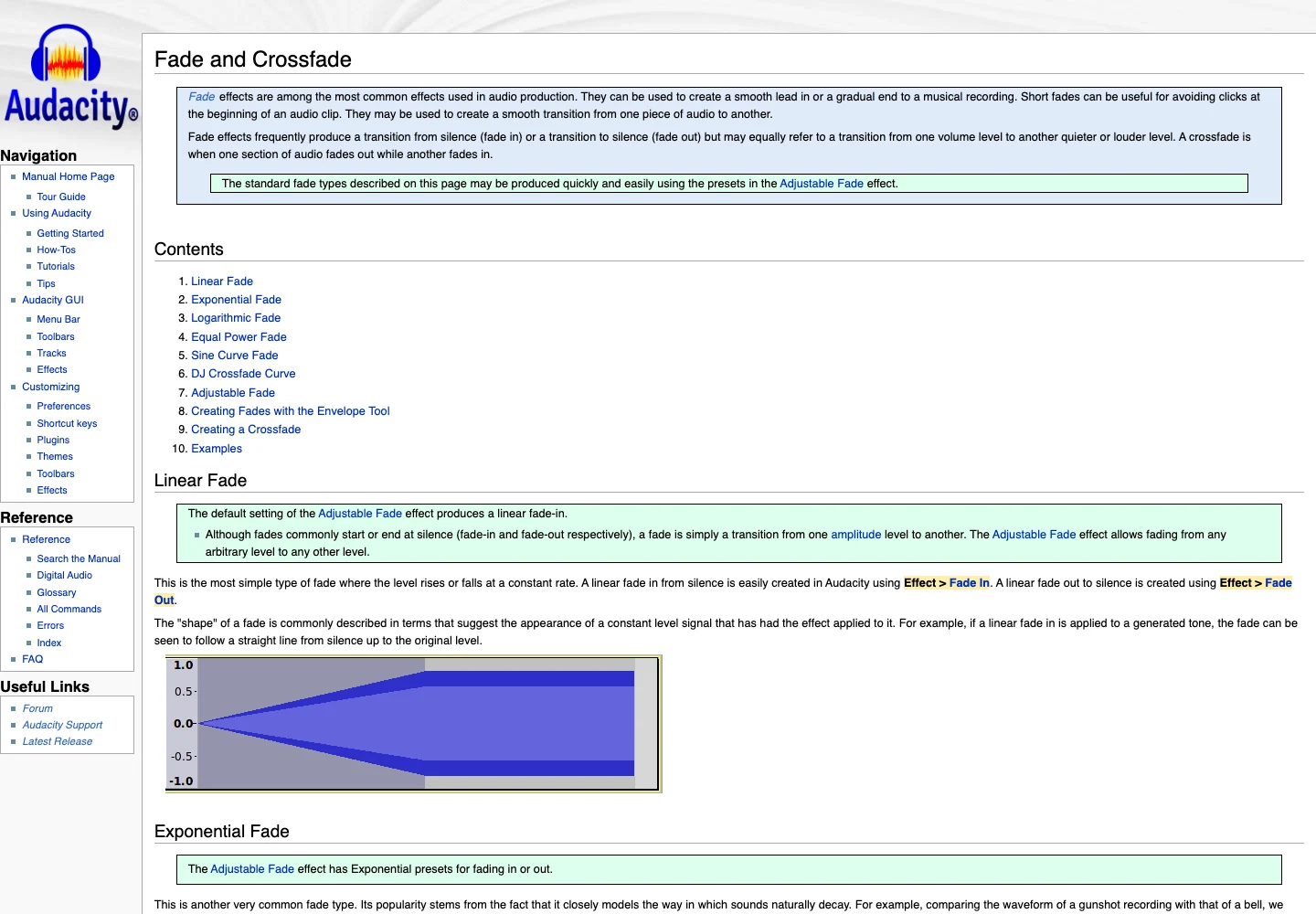
For the first attempt, keep the unedited track in the project and work on a duplicate. Select the end region, apply or draw the fade, then listen from before the fade begins. Starting playback halfway through the effect makes the change harder to judge.
A crossfade serves a different purpose: it blends overlapping audio. You may need one when joining two versions or repeating material, but a simple ending does not require an extra overlapping section. Adding one unnecessarily can create doubled rhythms or a blurred final chord.
Keep the project editable until you approve the complete export. If the recording is intended for a video, place the edited track under the picture before deciding that the finish is correct. The final visual moment may change how the same musical ending feels.
Shape the curve around the last phrase
A fade does not have to fall at a constant rate. You can hold the level while the final word completes, then lower the remaining instruments and decay. Audacity's envelope tutorial shows how control points shape the level without repeatedly applying a destructive effect.
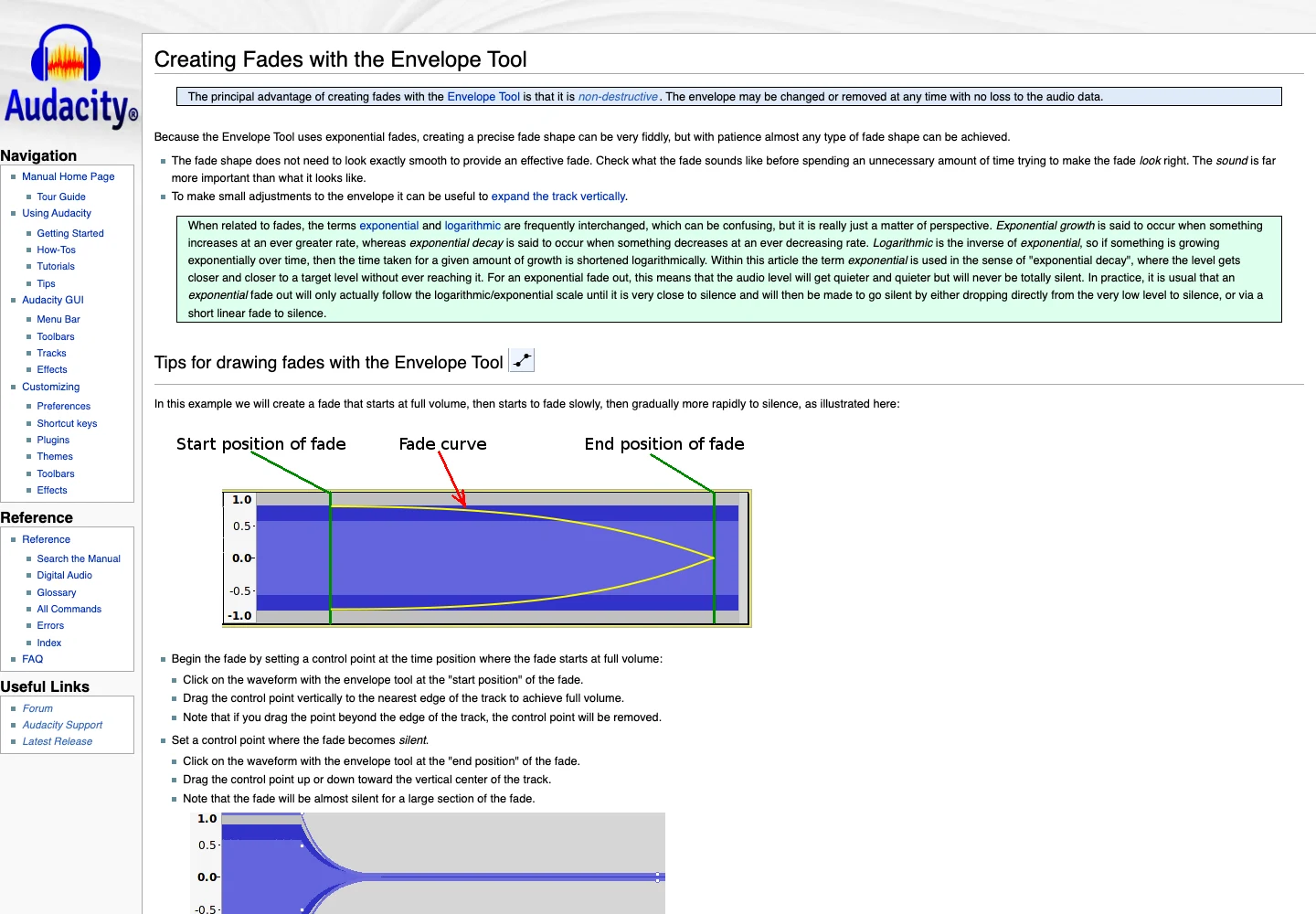
Use a small number of intentional points. Too many points make it harder to identify why a dip sounds strange. Begin with a point before the fade, a point where the decline starts and an endpoint. Add another only when a specific musical event requires it.
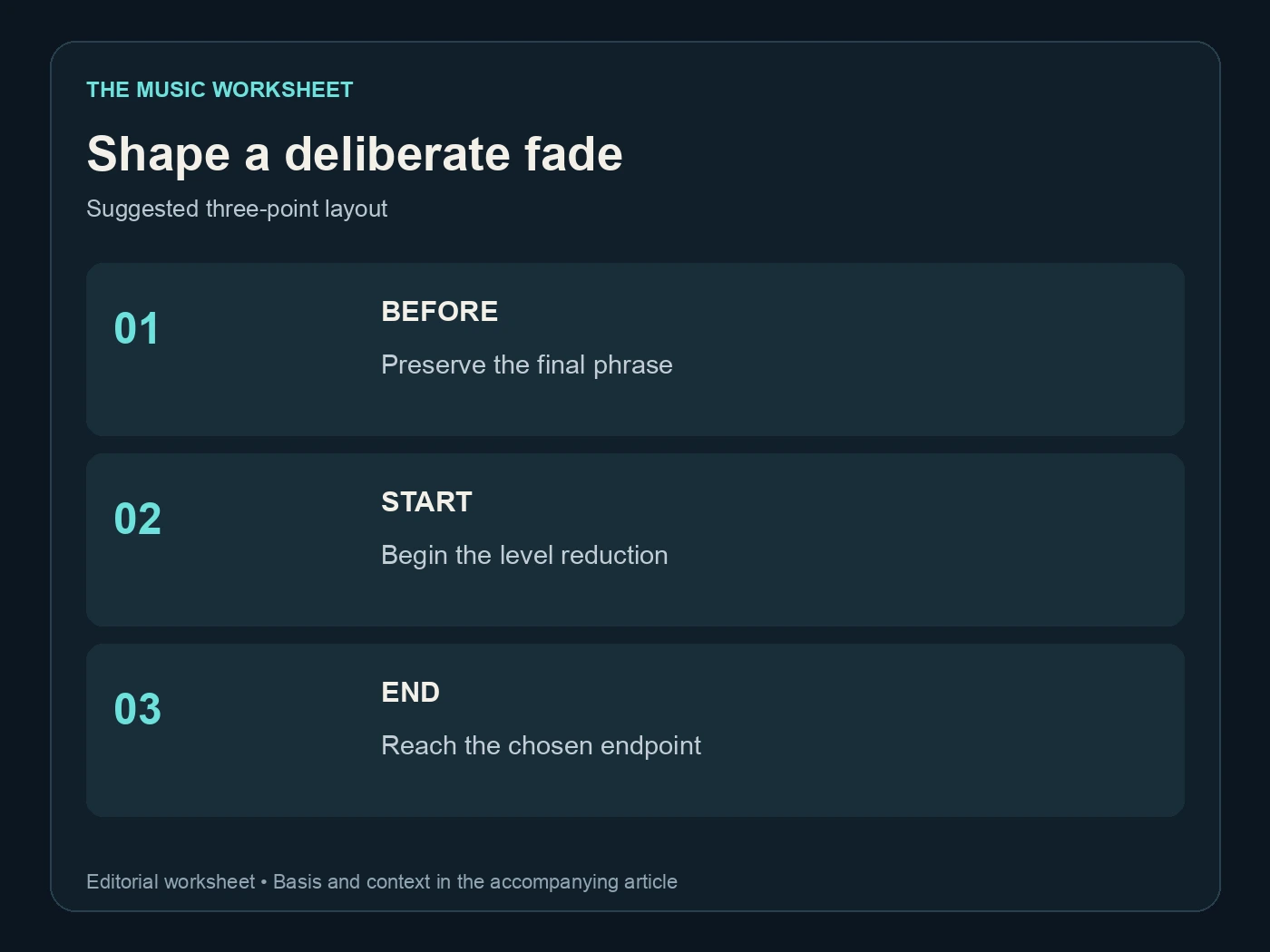
Those three points are a suggested starting layout, not a required Audacity limit. The purpose is to preserve the phrase, begin the reduction deliberately and reach the chosen ending. If the track seems to fall into a hole, move the start later or make the early decline gentler.
Listen quietly as well as at your normal working level. The final word can disappear sooner than expected when background noise or small speakers mask it. Do not compensate by making the entire track unnecessarily loud; revise the timing of the fade instead.
Compare endings with a repeatable check
Use the same playback level for the original and edited version. A louder candidate can sound more exciting even when its ending is less natural. Give each version a clear name rather than repeatedly overwriting “final.”
| Suggested comparison | Reviews per candidate | Question |
|---|---|---|
| Final lyric | 1 | Is the complete thought understandable? |
| Last chord or beat | 1 | Does the musical event finish? |
| Transition to silence | 1 | Does the decline feel deliberate? |
| Complete song | 1 | Does the ending fit the whole arrangement? |
The four reviews are a practical worksheet. They are not acoustic measurements or a claim that one curve works best. If two versions are equally convincing, choose the one that requires fewer special explanations for the person receiving the file.
Check the exact export as well as the editor preview. Export settings or a mistaken selection can produce a file shorter than the project timeline. Open the exported recording in another player and hear the last passage again before replacing a previous delivery.
Finish a WaveQuake recording in the same way
WaveQuake can supply the song you want to develop, while the ending remains a separate production decision. Decide whether the selected take needs a fade before treating mastering as the final step. Our WaveQuake review provides the wider product context.
Its mastering page describes Natural, Warm and Punch comparisons with a separate WAV export. Compare the chosen profile on the edited song; do not assume a mastering profile will complete a cut-off lyric or invent a missing resolution.

For an AI recording that also needs artifact processing, evaluate Undetectr on a preserved copy. Review the ending again after processing, especially sustained vowels, cymbal decay and the last bass note. Any process that changes the sound warrants another listening pass before you approve the fade.
The AI audio cleanup guide covers that broader review. Treat each step as a decision you can reverse: choose the performance, edit the ending, compare finishing and approve the actual exported file. This keeps a subtle problem from becoming buried under several later changes.
Archive the ending you approved
Keep three files or clearly identified versions: the source recording, the editable ending and the final delivery. Add a brief note such as “fade begins after the last word; final chord decay retained.” That description is more useful than “new master better.”
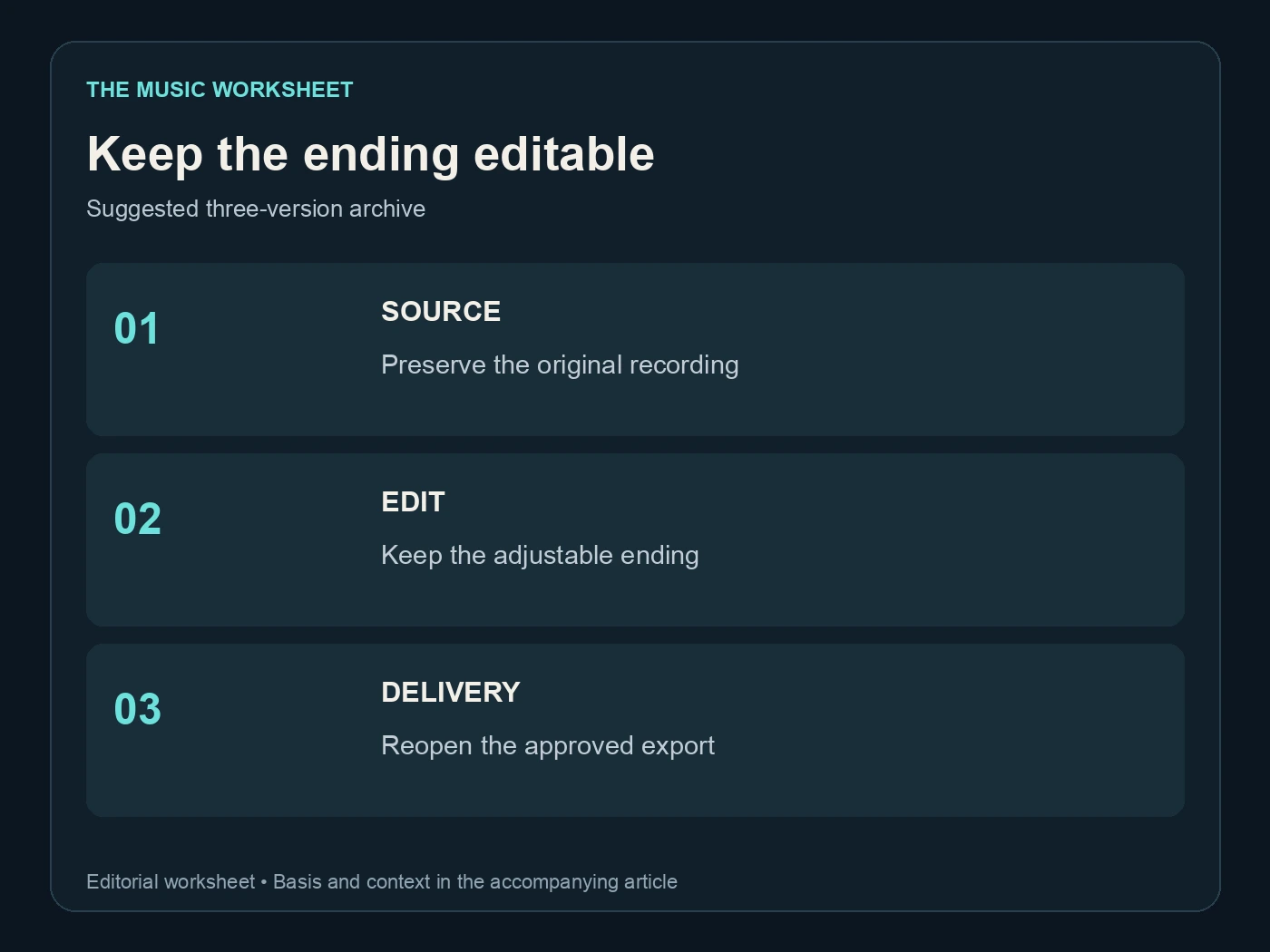
If a collaborator requests a different duration, return to the editable version. Repeatedly fading already faded exports reduces your ability to recover the original shape. A clean archive gives you the option to create a shorter version without starting the entire song again.

Use the WaveQuake help centre for the current download and studio workflow when that is where the recording originated. Store the delivered file somewhere you can find independently of a browser session.
Before sharing, verify the filename, duration and complete ending in a separate player. For a video commission, also confirm which picture version the fade matches. A technically correct audio export can still be the wrong deliverable if the editor has since changed the final scene.
Related reading
Frequently asked questions
How do I add a fade out to a Suno song?
Use the fade control documented in Suno's Song Editor when it is available in your account, or export the track and edit its level envelope. Choose the region after listening to the final phrase, then review the exported file.
Why does my Suno song stop abruptly?
The recording may end before its last phrase or decay completes. A fade can soften an ending but cannot recreate a missing word or chord. Decide whether you need a new section, a different candidate or a simple level edit.
How many seconds should a fade out last?
There is no universal duration. Use the phrase and intended context as the starting point, then compare a shorter and longer version. At a steady 120 BPM in 4/4, two bars last four seconds; that is a calculation, not a rule.
Is a fade out the same as a crossfade?
A fade out lowers one recording toward silence. A crossfade blends overlapping recordings or regions as one becomes quieter and the other becomes louder. Use a crossfade for a join when appropriate, not automatically for every ending.
Should I fade before or after mastering?
Keep an editable source and evaluate the entire finishing sequence. Establish the musical endpoint before final approval, then check it again after mastering or cleanup. The delivered file is the version that must preserve the last phrase and decay.
Can WaveQuake mastering repair an unfinished ending?
Mastering can change the finish of an existing performance, but it should not be treated as a way to compose a missing resolution. Edit or replace the incomplete musical passage first, then compare the available mastering treatment on the selected version.